
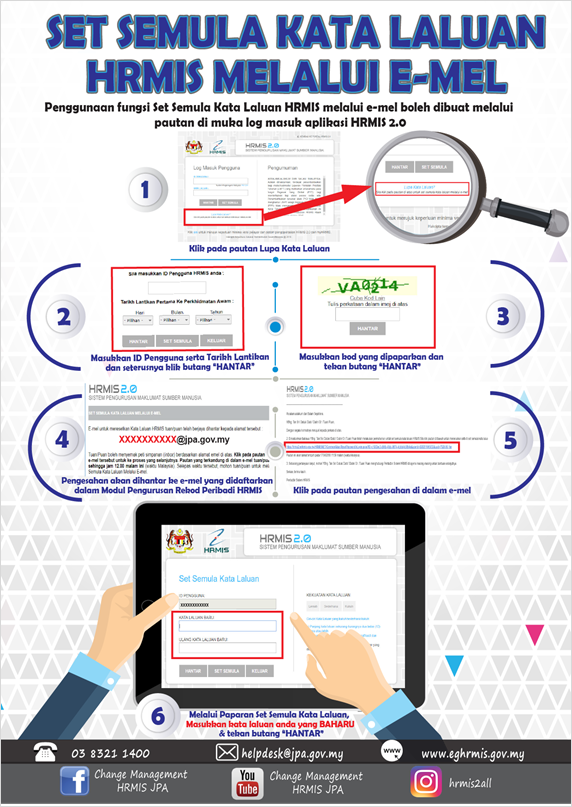
Password Reset Steps
1. Click the “Forgot Password” link on the HRMIS 2.0 login page.
2. Enter your User ID as well as Appointment Date and Confirmation Date (if applicable), then click “SUBMIT”.
3. Enter the displayed security code (captcha) and click “SUBMIT”.
4. verification message will be sent to the email address registered in the HRMIS Personal Record Management Module.
5. Open the email and click the verification link provided.
6. On the Password Reset screen, enter your new password and click “SUBMIT” to confirm the changes.
Important Notes
Ensure that the email address registered in HRMIS is active and valid.
If you do not receive the verification email, please check your Spam / Junk folder.
The new password must comply with the security requirements set by the system.